Your cart is empty
How to Make OSRS Full Screen in RuneLite

RuneLite is a popular third-party client for Old School RuneScape (OSRS), enhancing the gaming experience with various features and quality-of-life improvements. OSRS, a nostalgic version of the classic MMORPG RuneScape, attracts players with its retro graphics and engaging gameplay. RuneLite provides tools like customizable interfaces, improved graphics, and real-time information overlays, making it a preferred choice among players. This article explores how to enable full-screen mode in RuneLite and the benefits of playing OSRS in this mode.
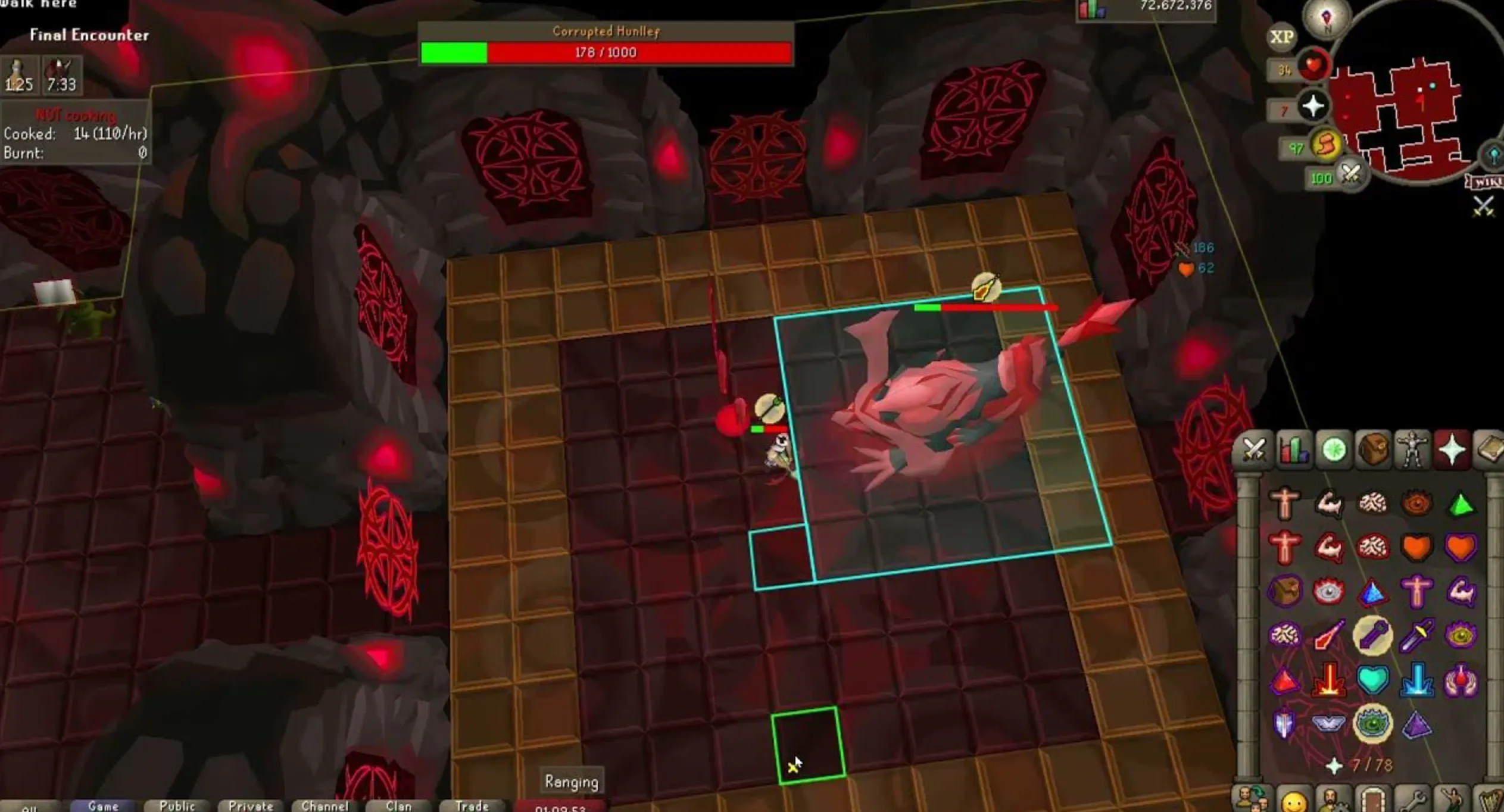
Playing OSRS in full-screen mode offers several advantages that can significantly enhance your gaming experience. One of the primary benefits is the immersive gameplay that full-screen mode provides. By eliminating distractions from the surrounding interface and maximizing your screen space, you can focus entirely on the game, making it easier to engage with the vibrant world of Gielinor.
Additionally, full-screen mode can improve your visibility and make it easier to spot important elements within the game. The larger display allows you to see more of the game world at once, which is particularly beneficial during intense gameplay moments such as boss fights or player versus player (PvP) encounters. You can react more quickly to events happening on-screen, giving you a competitive edge.
Another significant advantage is the enhanced graphical experience. RuneLite allows you to customize various graphics settings, and when combined with full-screen mode, it can provide a sharper, more detailed view of the game’s visuals. This improved clarity can make the colorful landscapes, character animations, and intricate details of the game more enjoyable.
Moreover, playing in full-screen mode can help reduce eye strain. When you minimize the windowed interface, there’s less contrast between the game and your desktop, leading to a more comfortable viewing experience. This is especially important for long gaming sessions, as it can help you maintain focus and reduce fatigue.
Lastly, full-screen mode can enhance your social experience in the game. When you’re fully immersed, you’re more likely to engage in conversations with other players, participate in group activities, and enjoy the community aspects of OSRS. This can lead to a more fulfilling and interactive gameplay experience, allowing you to build friendships and collaborate with others in the game.
3. Step-by-Step Guide to Adjusting RuneLite Settings
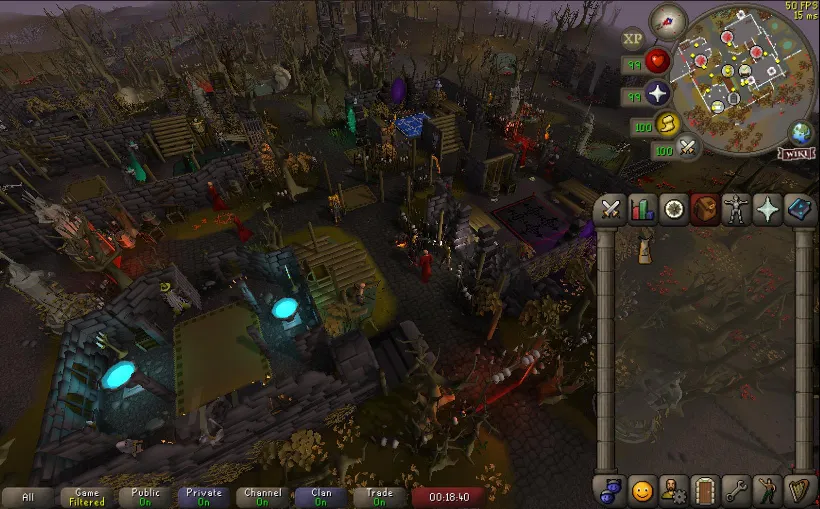
Getting RuneLite to run in full-screen mode is a straightforward process, but it requires a few specific adjustments in the settings. Here’s how you can do it, step by step:
- Open RuneLite: Start by launching the RuneLite client on your computer.
- Access the Settings: Click on the wrench icon located in the top right corner of the RuneLite client. This will open the settings menu.
- Navigate to the “Display” Settings: In the settings menu, find the “Display” section. This is where you’ll find various options related to how the game appears on your screen.
- Enable Full-Screen Mode: Look for the option labeled “Full Screen.” Toggle this option on. You may also want to adjust the resolution settings to fit your display preferences.
- Adjust Screen Size: If needed, tweak the “Screen Size” settings to ensure the game fits your monitor properly. You can also adjust the “Windowed Mode” settings if you prefer a bordered window.
- Save Your Settings: After making these adjustments, click the “Save” button at the bottom of the settings menu to apply your changes.
Once you’ve completed these steps, RuneLite should now be in full-screen mode. If you encounter any issues, double-check the settings and make sure your graphics drivers are updated.
4. Using the Full-Screen Mode Effectively
Now that you have RuneLite in full-screen mode, it’s important to make the most out of this setup. Here are some tips for effective use:
- Optimize Your View: Adjust the camera settings to ensure you have the best possible angle for gameplay. You want to see as much of the game world as possible.
- Manage Your Inventory and Interfaces: Take advantage of the extra screen real estate to organize your inventory and game interfaces. You can move and resize them for easier access.
- Use Hotkeys: Familiarize yourself with the hotkeys available in RuneLite to navigate quickly. This will enhance your gameplay experience, especially in full-screen mode.
- Engage with the Community: Join RuneLite’s community discussions to share your full-screen experiences and get tips from other players. Forums and social media are great places to connect.
- Take Breaks: Playing in full-screen mode can be immersive, so remember to take breaks to avoid fatigue and maintain focus.
By following these tips, you’ll not only enjoy the full-screen experience but also enhance your overall gameplay in OSRS. Happy gaming!
Troubleshooting Common Issues
When you’re diving into the immersive world of Old School RuneScape (OSRS) using RuneLite, you might run into a few hiccups when trying to set the game to full screen. Don’t worry; it’s quite common, and many players have faced similar issues. Here are some common problems and their solutions:
- Full Screen Not Activating: If the full-screen mode isn’t working, ensure that you have the latest version of RuneLite. Sometimes, simply updating the client can resolve the issue.
- Screen Flickering: If you encounter flickering during full screen, it could be related to your graphics settings. Try adjusting the graphics settings in RuneLite by going to Settings > Graphics and modifying the quality settings.
- Resolution Issues: Sometimes, the game doesn’t fit properly on your monitor. Make sure your display settings match your game settings. You can check your monitor’s resolution and adjust it in the RuneLite settings.
- Performance Lag: Running in full screen can sometimes lead to performance issues. If you experience lag, consider lowering your graphics settings or closing any unnecessary applications running in the background.
If you’re still having trouble after trying these solutions, you might want to check out the RuneLite community forums or Discord channels. They can be a great resource for troubleshooting and advice!
Additional Tips for Enhancing Your Gameplay
Now that you’ve set OSRS to full screen in RuneLite, let’s take your gaming experience up a notch! Here are some additional tips that can significantly enhance your gameplay:
- Customize Your Interface: RuneLite allows you to customize your interface to suit your preferences. You can rearrange your tabs, resize windows, and add or remove features. This personalization can make your gameplay smoother and more enjoyable.
- Use Plugins: Take advantage of the various plugins available in RuneLite. Features like XP trackers, item notifiers, and boss timers can give you an edge in your gameplay. Explore the plugin hub and enable the ones that suit your playstyle.
- Adjust Hotkeys: Familiarize yourself with RuneLite’s hotkey settings. Customizing hotkeys for actions you frequently use can save you time and improve your efficiency during gameplay.
- Engage with the Community: The OSRS community is vibrant and helpful. Joining forums, social media groups, or Discord servers can provide you with tips, strategies, and even friends to play with!
By implementing these tips, you not only enhance your overall gaming experience but also enjoy OSRS to its fullest potential. Happy gaming!
How to Make OSRS Full Screen in RuneLite
Playing Old School RuneScape (OSRS) in full screen can enhance your gaming experience by providing a larger view of the game world. RuneLite, a popular third-party client for OSRS, offers a simple way to achieve this. Here’s how to set it up:
- Launch RuneLite: Open the RuneLite client on your computer.
- Access Settings: Click on the wrench icon located in the top right corner to open the settings menu.
- Adjust Game Size: In the settings menu, look for the option labeled Game Size.
- Select Full Screen: Change the game size to Full Screen.
- Save Changes: Ensure that your changes are saved automatically or click the save button if required.
- Restart RuneLite: Close and reopen the RuneLite client to apply the new settings.
Additionally, consider the following tips for an optimal full screen experience:
- Graphics Settings: Adjust the graphics settings within RuneLite to ensure smooth performance.
- Screen Resolution: Set your monitor to its native resolution for the best visual quality.
- Keyboard Shortcuts: Familiarize yourself with keyboard shortcuts to navigate the game easily in full screen mode.
By following these steps, you can easily switch to full screen mode in RuneLite and enjoy a more immersive OSRS experience. Embrace the full view of Gielinor and enhance your gameplay!
In conclusion, making OSRS full screen in RuneLite is a straightforward process that enhances your gaming experience by providing a larger and more immersive view of the game. Follow the steps outlined above to enjoy your adventures in full screen mode.